The short answer
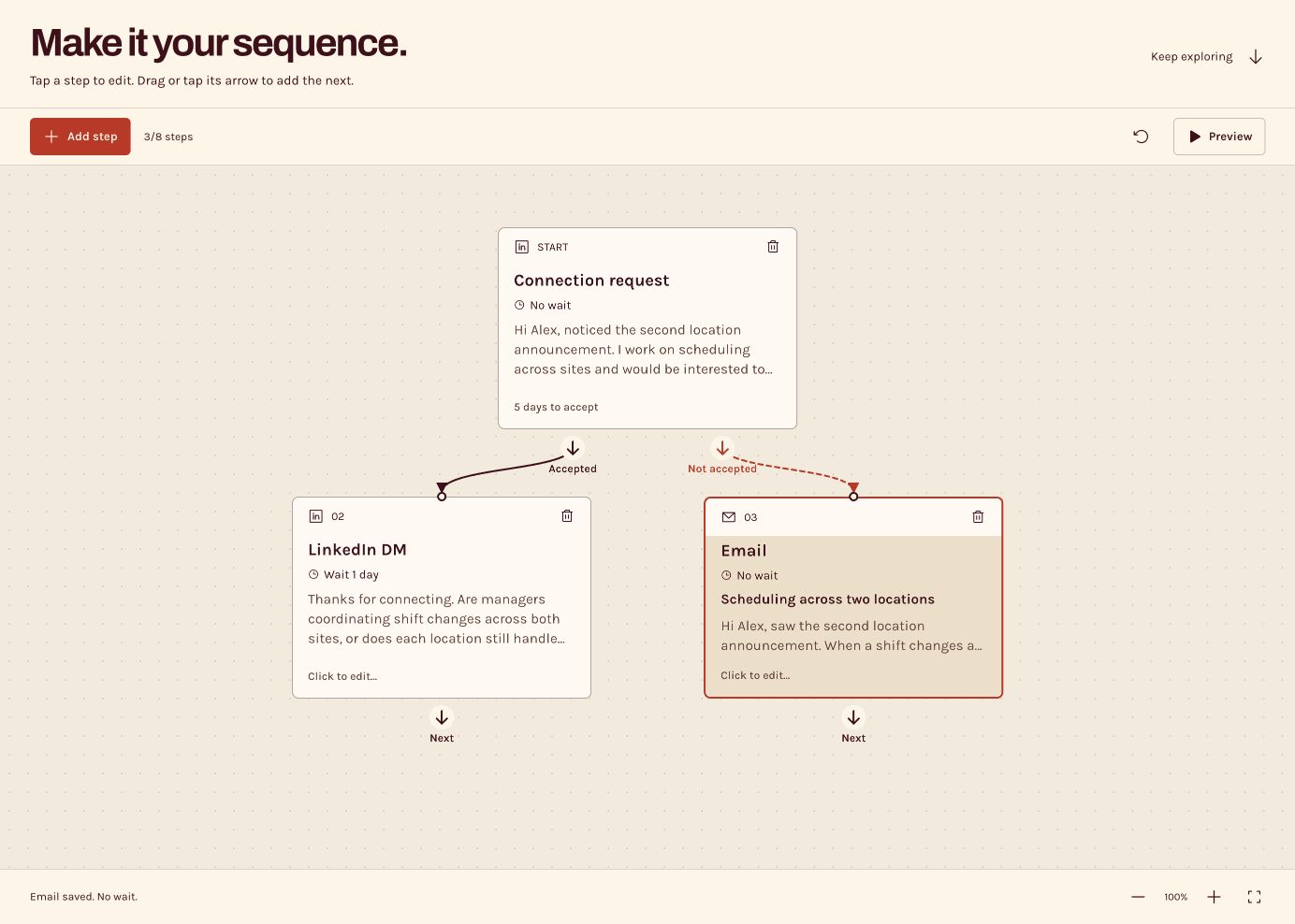
Start with one reason to reach out. In this illustrative plan, send a LinkedIn connection request, wait up to five days for acceptance, then use a DM one day after acceptance or an email when the window expires. Review both routes and define how replies end automated follow-up in your production tool.
Published by Beel. Beel is in development. Its public builder is a planning demo; competitor features are based on linked documentation checked October 16, 2026. Read our editorial approach.
At a glance
Swipe the table to see all columns.
| What to compare | What it means | What to check |
|---|---|---|
| Start | LinkedIn connection request | A short, relevant introduction; five-day acceptance window. |
| Accepted | LinkedIn DM after one day | Ask a focused question related to the introduction. |
| Not accepted | Email after the five-day window | Explain the same relevant problem without assuming the request was seen. |
| After a reply | Human conversation | Your production workflow should stop conflicting scheduled touches. |
The scenario: an example, not a customer story
Imagine you sell scheduling software and want to speak with an operations lead at a business opening a second location. You have a concrete reason to ask about coordination across sites. Every message below is invented to illustrate the workflow; it is not a Beel customer result or a tested template.
Use your own research to establish the observation. If you cannot explain why the problem is relevant to this company, fix that before adding steps.
Write the request and the two possible follow-ups
Connection note: “Hi Alex, noticed the second location announcement. I work on scheduling across sites and would be interested to connect.” Keep the note accurate and suited to the platform’s current limits.
Accepted DM: “Thanks for connecting. Are managers coordinating shift changes across both sites, or does each location still handle its own? I’m trying to understand where that handoff gets difficult.”
Fallback email subject: “Scheduling across two locations”. Body: “Hi Alex, saw the second location announcement. When a shift changes at one site, does someone have to reconcile coverage at the other? We’re building around that handoff. Is it something your team runs into?”
These messages share one subject without pretending a conversation has already happened. Adapt the language to what your product actually does, and do not imply personal research you have not performed.
Translate the plan into cards and waits
Open Beel’s builder. The initial example already connects a LinkedIn request to a DM and an email. Click the request, set “Wait for acceptance, up to” to five days, paste the example note, and choose Done. Edit the DM with a one-day wait, then edit the email subject and message with no additional wait. To add a different step, drag an output arrow into empty canvas or tap it on a phone. [1]
In a live workflow, the accepted route’s timing depends on when acceptance happens. The playground uses a selected outcome rather than observing an acceptance timestamp. The fallback route starts after the five-day window, so adding another five-day wait to its email would unintentionally extend the plan. Make that timing explicit when reviewing it.
Preview both routes from the recipient’s side
Open Preview and select Accepted, then Not accepted to inspect both outcomes. In the current demo, Accepted assumes immediate acceptance, so the DM appears on day one. Not accepted waits five days before the fallback email. The simulated phone advances its date and time; tap a notification to pause and read the full copy. [1]
Use the preview as a writing and logic review. Ask a teammate to explain the two routes before you explain them. If they cannot, simplify the diagram or the messages.
Define the handoff before running a live sequence
A real campaign also needs rules for a reply, an opt-out, a late acceptance and an out-of-office response. Document which event stops future touches and who takes over. The Beel preview lets you choose an example branch; it does not observe real replies or acceptance events.
These rules vary in established products. lemlist documents configurable stop behavior for replies, while Reply documents conditions and branch handling. Verify the behavior of the live tool you use rather than assuming a diagram implements every edge case. [2][3]
Improve one thing at a time
First review whether the observation and question are relevant. Then check whether the branch and wait make sense. Only after those are clear should you test another channel or follow-up. Changing the audience, message and timing together makes a result harder to interpret.
The point of this example is a sequence that you can explain. Beel gives you a concrete place to work on that plan before it becomes someone else’s inbox.
Try this in Beel
Build your version of this sequence.
Open Beel, add the request and its two outcomes, then change the messages to fit your own product. Preview both routes before adding more steps.
Interactive planning demo. Live outreach is in development.Questions people ask
Are these timings proven to work best?
No. Five days and one day are illustrative settings. Adapt timing to your audience and test it.
Does this article include a real client campaign?
No. The business, recipient and messages are illustrative.
Will opening the builder load this exact example?
No. Use the instructions to create or adapt the steps in the playground. The public demo does not send the messages.
Sources
Official documentation consulted for this article. Product availability and terms can change.